Your Recording, Ready for Anywhere
Choose the export option that fits your audience and purpose. Screencastify makes it easy to download your content or publish it directly to YouTube.
.gif)
Millions of teachers & students use Screencastify to create amazing videos
Choose the Format That Fits
Use MP4 when you need a complete video or MP3 when your audience only needs the audio. Create flexible resources that work across different platforms and learning environments.
- Save video and audio files to your computer
- Add exported content to presentations and resources
- Reuse recordings across multiple platforms
.png)
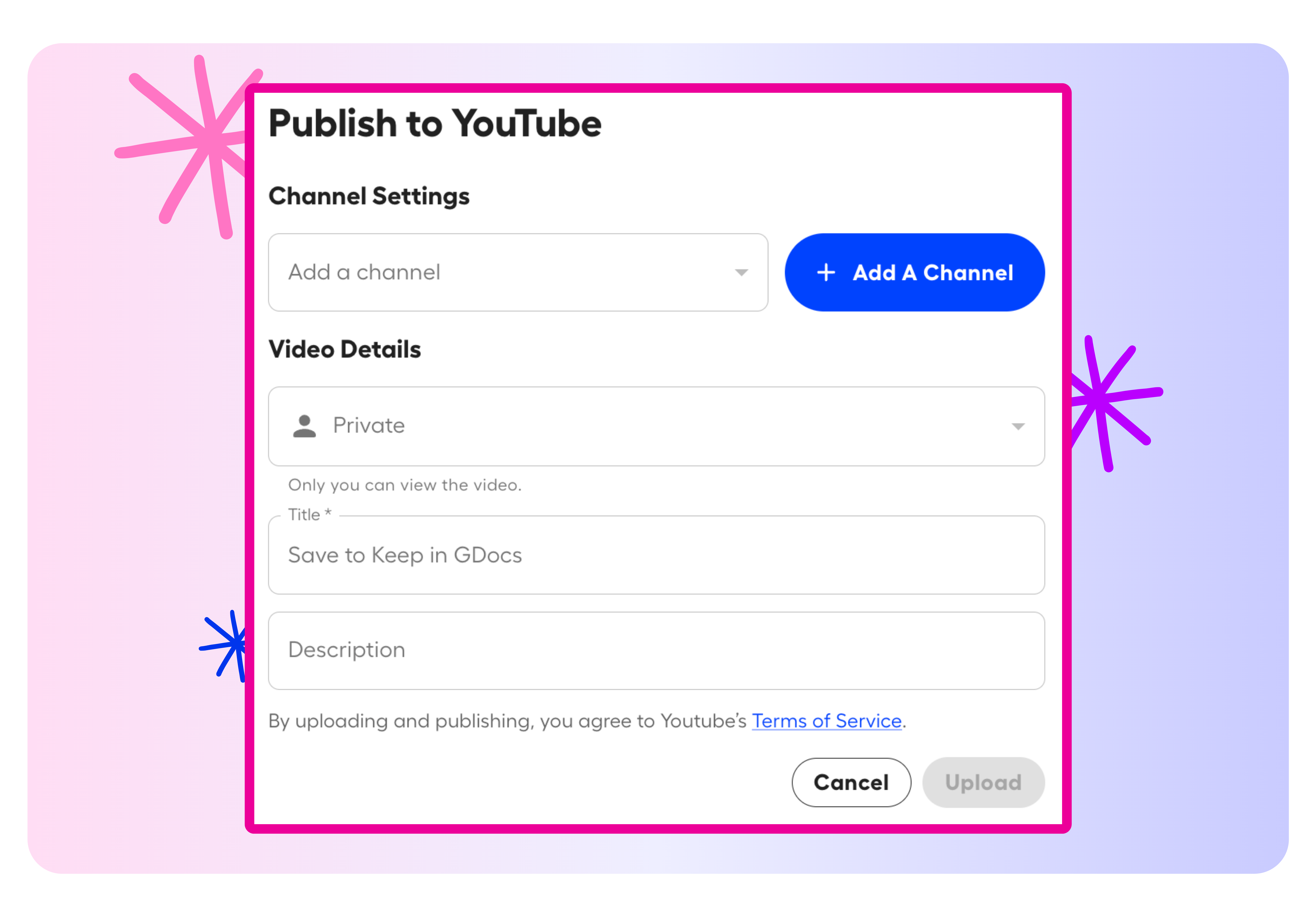
Publish Directly to YouTube
Send your recording to YouTube from the Screencastify Video Management Page. Choose your channel and privacy settings without downloading and uploading the file separately.
- Connect your YouTube account once
- Choose Public, Private, or Unlisted visibility
- Copy and share your YouTube link after uploading
More features to try
There’s even more you can do with Screencastify. Explore these features to create, transform, and share engaging learning content:
- Castify Edit: Trim, enhance, and polish your recordings
- Submit AI: Collect video assignments from students with ease
- Transform: Turn videos into ready-to-use documents
- Content: Discover resources aligned with K–12 standards and YouTube content
.png)


Share Learning in the Format Students Need

Download Video Lessons
Export lessons as MP4 files for use in presentations, learning platforms, and classroom resources.

Create Audio Learning Materials
Save recordings as MP3 files for read-alouds, assignment instructions, pronunciation practice, and audio reviews.

Reach Viewers on YouTube
Publish lessons and demonstrations directly to YouTube so students can access them through a familiar platform.

Reuse Content Across Classes
Save and repurpose recordings for future lessons, substitute plans, review activities, and family communication.
Join millions of screencasters today
Screencastify Record is the simplest screen recording tool for educators, personal, or professional use.


Frequently asked questions

Open the recording from your My Videos Library. On the Video Management Page, select Export Video, choose MP4 or MP3, and download the file when processing is complete. Your recording must be saved to Google Drive to enable these export options.
Select Export to YouTube from the Video Management Page, connect your YouTube account, choose a channel and privacy setting, and upload the recording. Your video must be saved to Google Drive, and you need an active YouTube channel.
No. Viewer analytics and interactive questions are available through the Screencastify Watch Page and are not included in downloaded files or YouTube exports.



.svg)