Record, Save, and Share With Google Drive
Bring Screencastify and Google Drive together for a smoother video workflow. Keep recordings organized, access your content easily, and share videos from a familiar platform.
.gif)
Millions of teachers & students use Screencastify to create amazing videos
Keep Every Recording Organized
Screencastify stores your recordings in a dedicated Google Drive folder. Your My Videos Dashboard reflects that folder, helping you find and manage content from either platform.
- Automatically store recordings in Google Drive
- Access videos through Drive or Screencastify
- Keep content together in a dedicated folder
Move From Storage to Sharing Faster
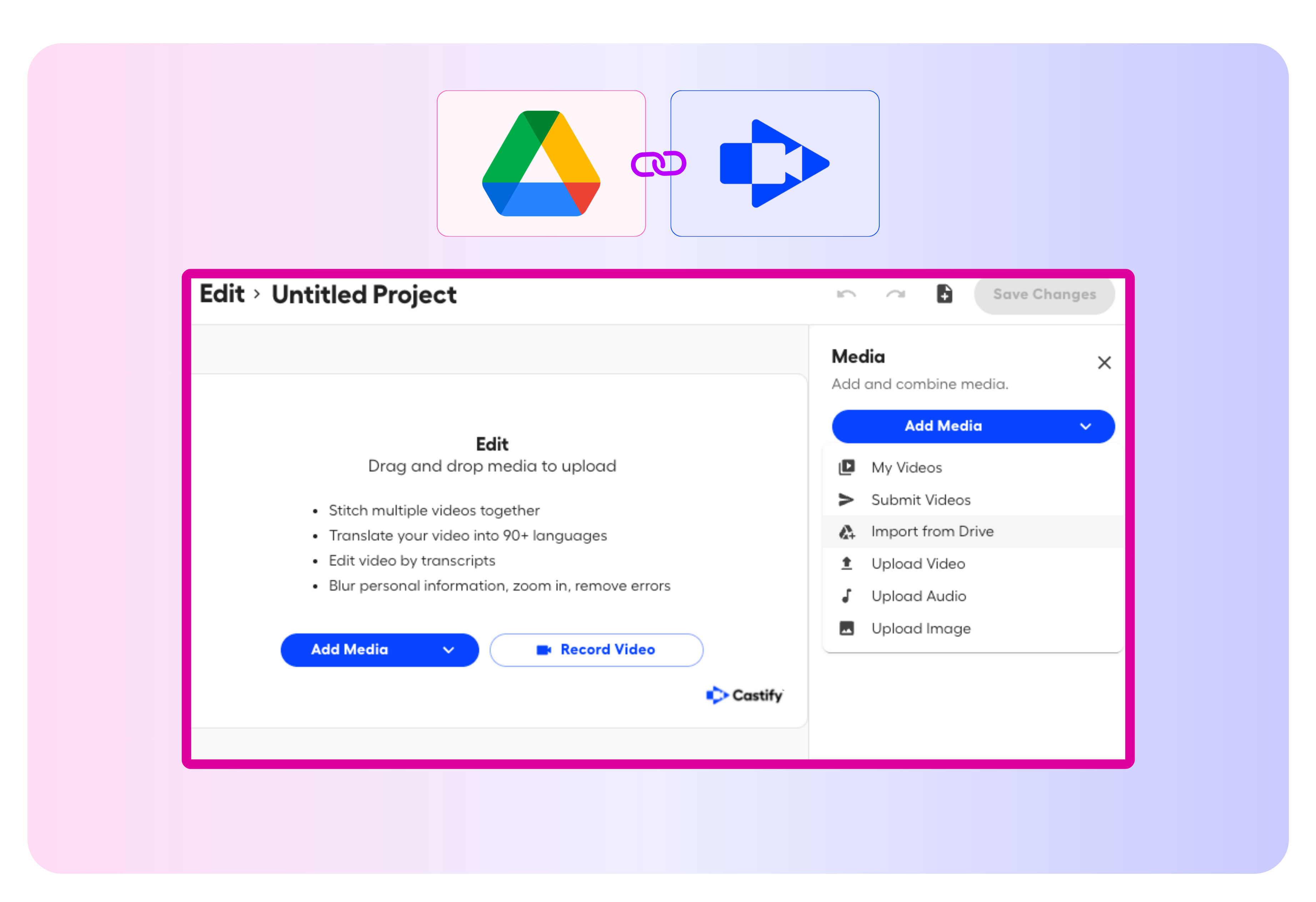
Bring videos from Google Drive into Screencastify to edit, enhance, and share. Reduce extra steps and keep your workflow moving without manually transferring files.
- Import videos directly from Google Drive
- Open Drive recordings in the Screencastify editor
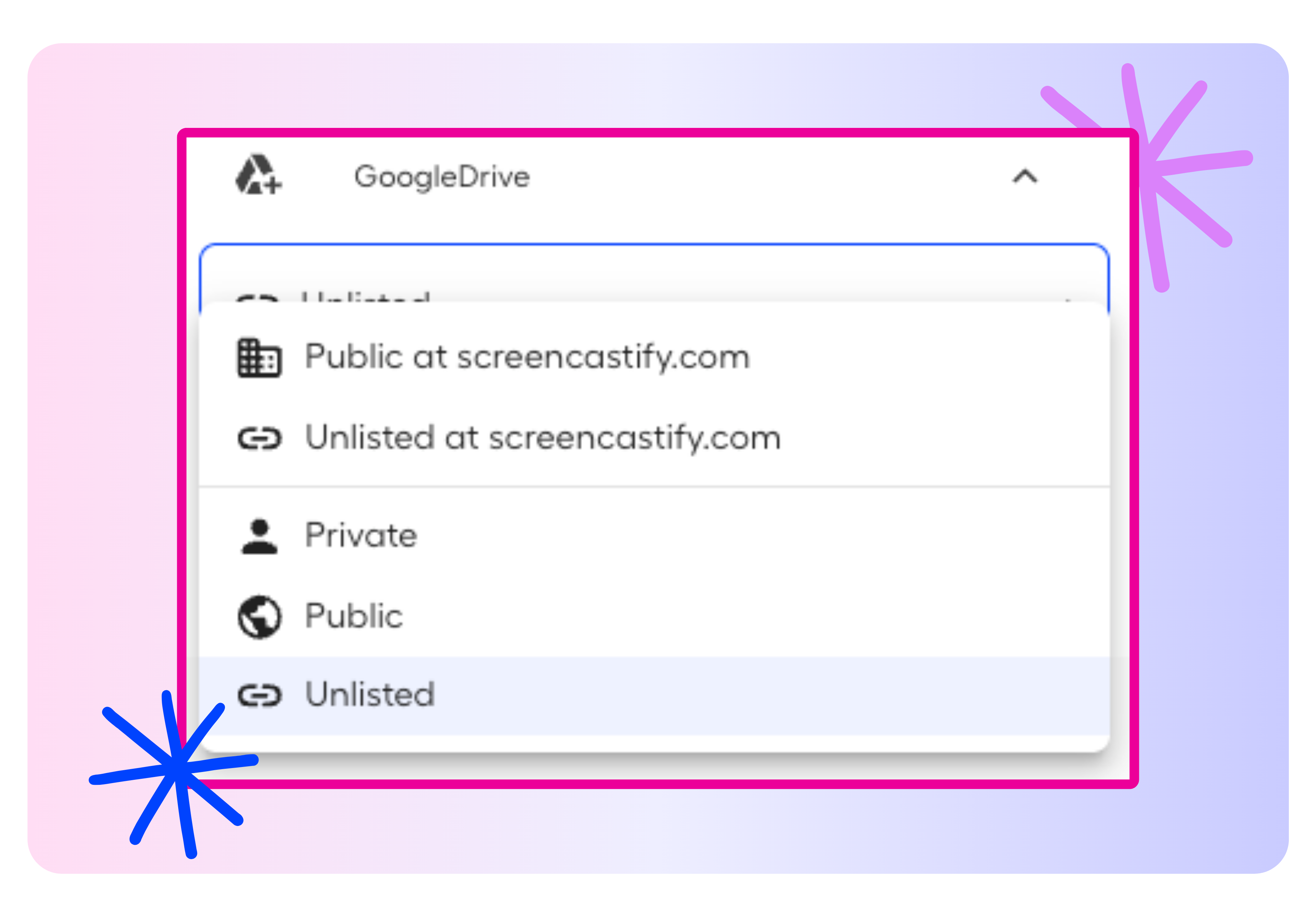
- Manage sharing settings and copy a Drive link
More features to try
There’s even more you can do with Screencastify. Explore these features to create, transform, and share engaging learning content:
- Castify Edit: Trim, enhance, and polish your recordings
- Submit AI: Collect video assignments from students with ease
- Transform: Turn videos into ready-to-use documents
- Content: Discover resources aligned with K–12 standards and YouTube content
.png)


Keep Classroom Videos Organized and Accessible

Build a Reusable Lesson Library
Store recorded lessons, demonstrations, and tutorials in Google Drive so they are easy to find and use again.

Work With Existing Videos
Import videos already saved in Drive and bring them into Screencastify for editing, enhancing, and sharing.

Share Resources Quickly
Copy a Google Drive link to send recordings to students, colleagues, and families through familiar tools.

Simplify Content Management
Keep classroom videos connected across Screencastify and Drive instead of managing separate copies in different places.
Join millions of screencasters today
Screencastify Record is the simplest screen recording tool for educators, personal, or professional use.

.avif)
.avif)
Frequently asked questions

Sign in to Screencastify with your Google account and follow the prompts to grant access. Screencastify can then add recordings directly to your Google Drive.
Recordings are saved in a dedicated Screencastify folder in your Google Drive. Your Screencastify My Videos Dashboard reflects the videos stored in that folder.
Open the recording from your My Videos Dashboard. On the Video Management Page, select the Google Drive tab, choose your sharing settings, and click Copy Drive Link.




.svg)