Make Every Point Easier to Follow
Add visual guidance directly to your screen while recording. Use annotations and mouse effects to highlight important information, explain ideas, and keep viewers focused.
.gif)
Millions of teachers & students use Screencastify to create amazing videos
Highlight Ideas as You Explain
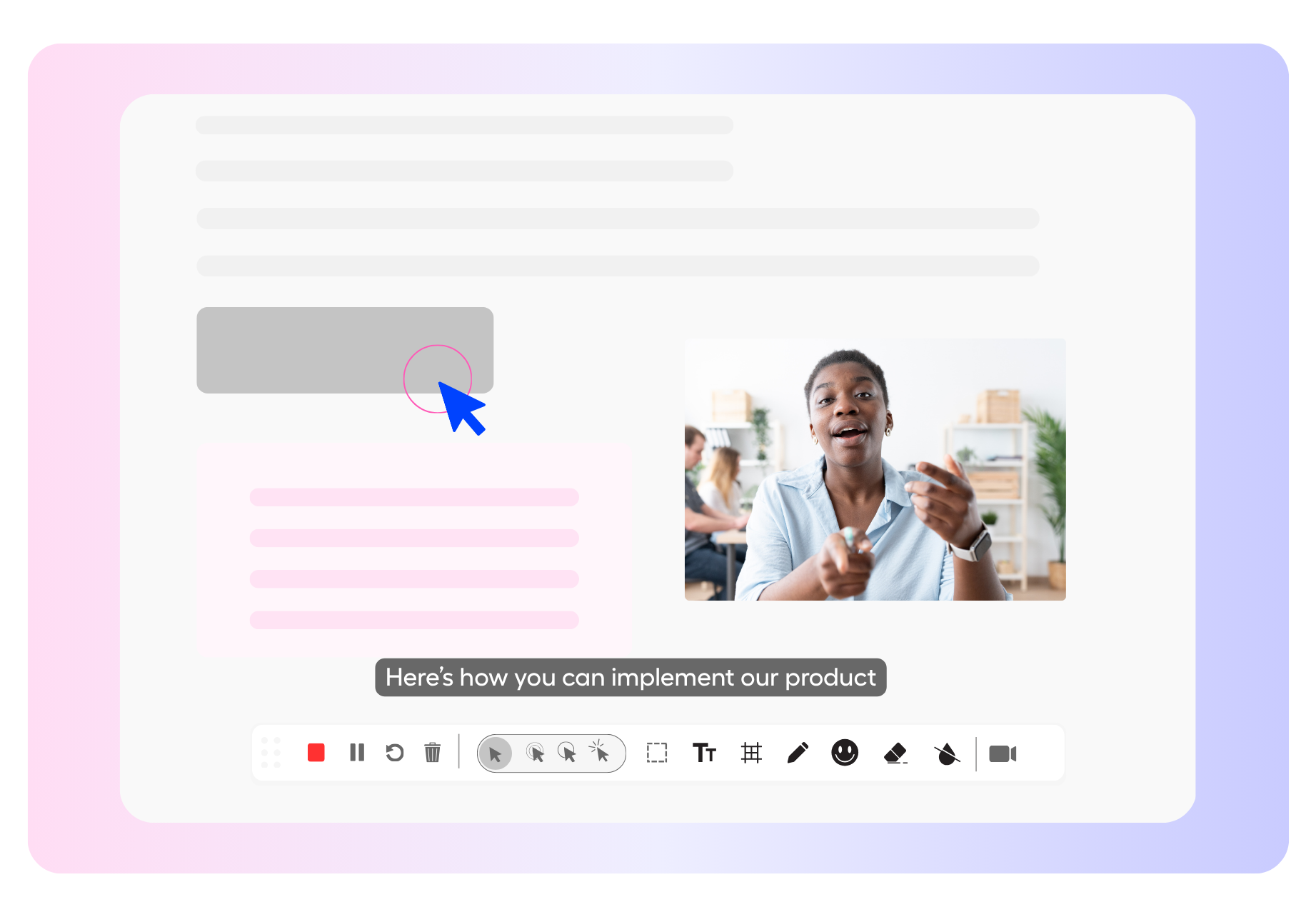
Use real-time annotation tools to emphasize key details without interrupting your recording. Mark up your screen while your explanation is happening.
- Write, underline, and circle important content
- Place rectangles around buttons, text, or key areas
- Add stickers to emphasize actions and feedback
Guide Every Click and Movement
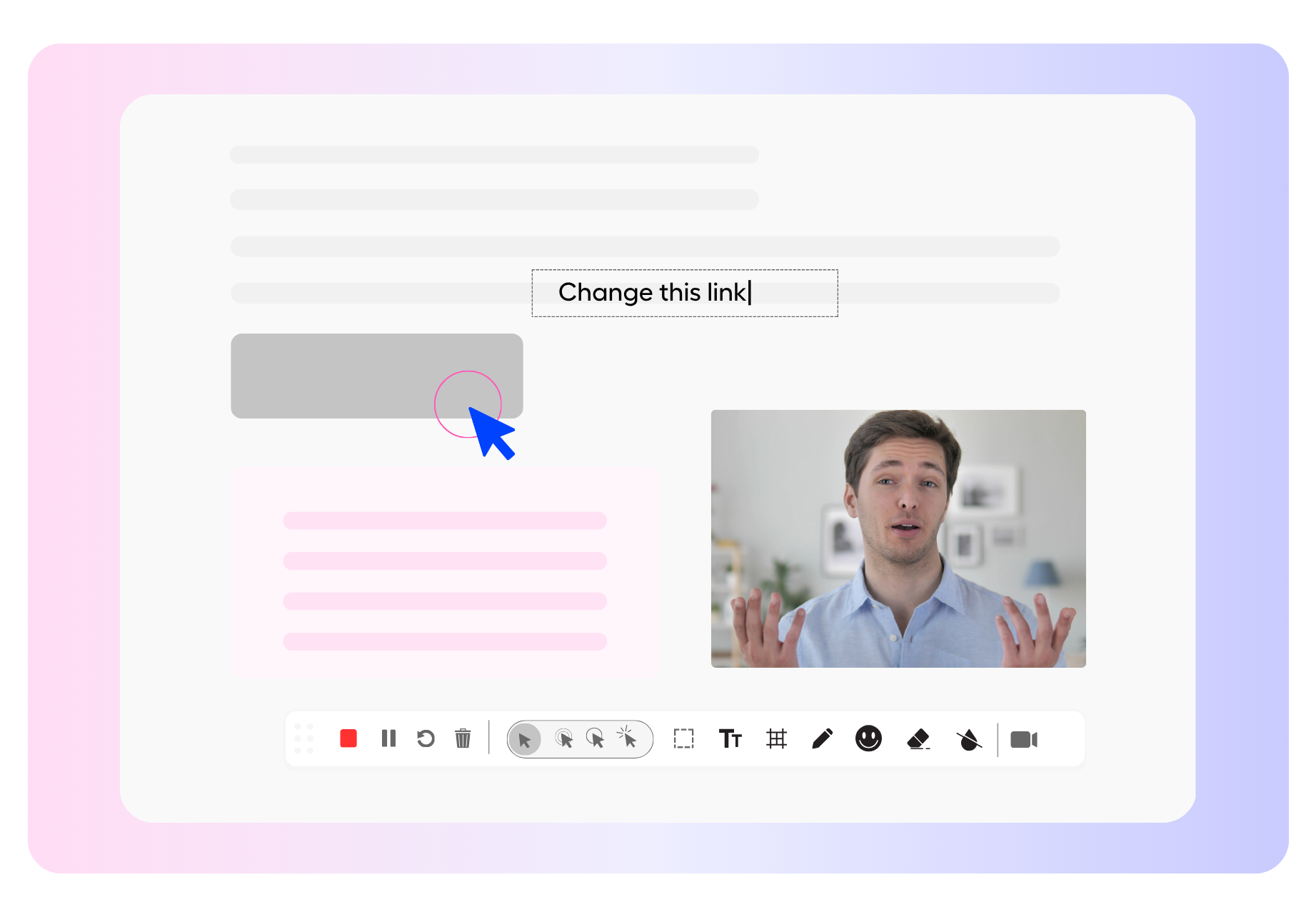
Make your cursor easier to follow with visual mouse effects. Show viewers where to look and which actions to take throughout a demonstration.
- Display a visual highlight whenever you click
- Spotlight your cursor by dimming the background
- Add engaging effects to important interactions
More features to try
There’s even more you can do with Screencastify. Explore these features to create, transform, and share engaging learning content:
- Castify Edit: Trim, enhance, and polish your recordings
- Submit AI: Collect video assignments from students with ease
- Transform: Turn videos into ready-to-use documents
- Content: Discover resources aligned with K–12 standards and YouTube content
.png)


Turn Every Recording Into a Visual Lesson

Explain Complex Concepts
Write, box, and highlight information as you teach so students can follow each part of an explanation.

Demonstrate Digital Tasks
Use mouse effects and rectangles to show students exactly where to click during a website or software walkthrough.

Model Problem-Solving
Work through equations, diagrams, and examples directly on screen while explaining your thought process.

Add Visual Feedback
Use stickers and annotations to highlight strengths, identify areas for improvement, and make feedback more engaging.
Join millions of screencasters today
Screencastify Record is the simplest screen recording tool for educators, personal, or professional use.


.avif)
Frequently asked questions

Open the Screencastify extension, turn on Show Drawing Tools, and begin your recording. The annotation toolbar will appear while you record a browser tab or your desktop.
The toolbar includes a pen, rectangle tool, stickers, an eraser, and an option to clear the screen. You can also choose mouse effects such as Circle Clicks, Focus, Classic, and Fireworks.
Yes. Use the eraser to remove individual annotations or select Clear Screen to remove everything and continue with a clean screen.



.svg)